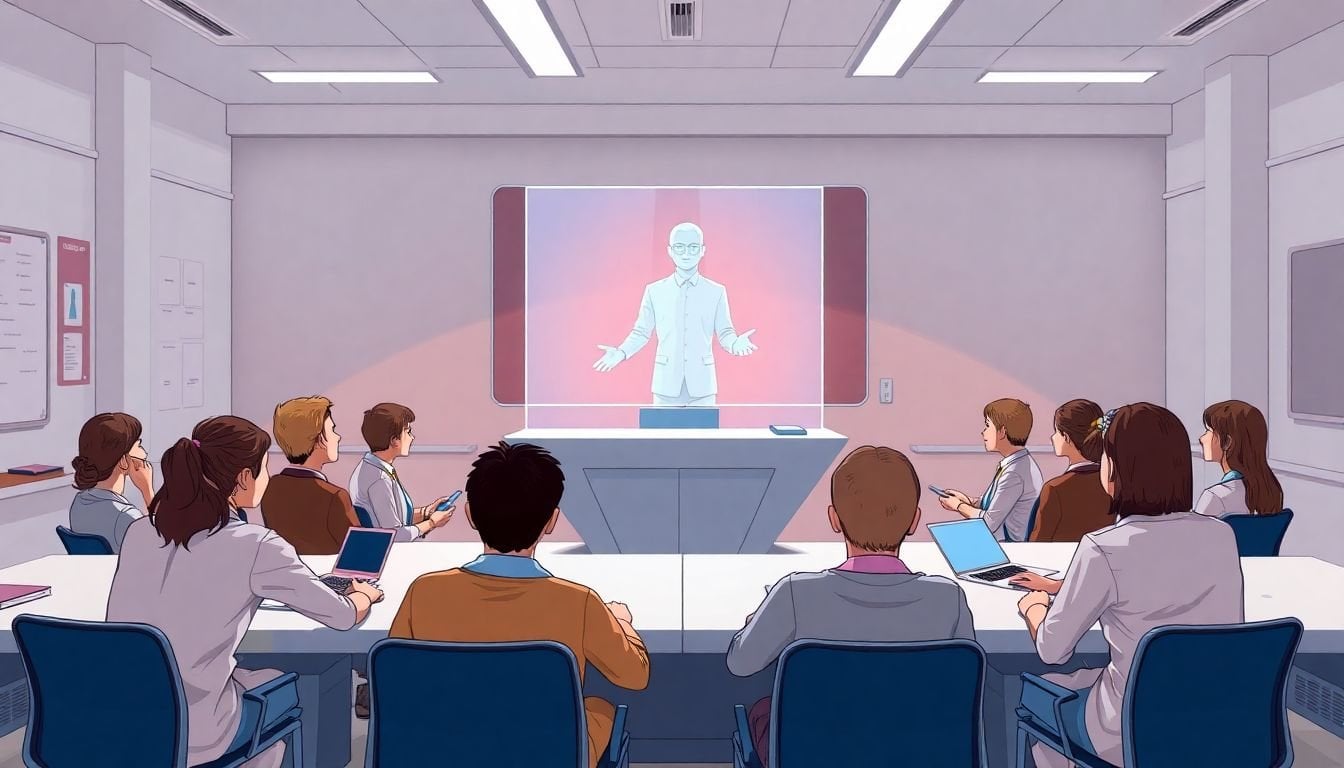
Holographic Guest Speakers in Virtual Classrooms: How to Use Them Effectively
It’s totally fair to be skeptical about holograms in education. I mean, we’ve all seen “hologram” demos that look amazing in a promo video and then fall apart in real life, right?
Still, I’ve watched schools experiment with holographic guest speakers in virtual classrooms, and the best setups aren’t just about the wow factor. When they’re done well, they make it easier for students to pay attention, ask questions, and feel like a real person is actually there with them.
In this post, I’ll break down what holographic guest speakers really are, how the tech typically works in education, where they fit best in lessons, and—most importantly—how to use them effectively without wasting time or money.
Key Takeaways
- Holographic guest speakers are 3D, “in-room” projections of a real person (often using semi-transparent displays or volumetric-style capture) that help students feel more connected than a typical video call.
- Most deployments follow a repeatable workflow: capture/record (or live capture), process the content, project it using a display setup, then run a rehearsed lesson with a real Q&A structure.
- They work best for guest lectures, STEM demonstrations, language exchanges, and multi-campus events where travel and scheduling are the bottlenecks.
- In practice, the biggest wins tend to show up in engagement (more questions, higher attendance) rather than “miracle learning” overnight.
- The challenges are real: upfront cost, setup complexity, lighting sensitivity, and staff training. Renting/portability and rehearsals help a lot.
- Don’t start with a school-wide rollout. Start small, measure student response, fix the tech issues, then expand.
- Classroom prep matters: choose a room with controllable lighting, set up clear sightlines, and assign a tech owner to handle calibration and streaming.
- Looking ahead, adoption will likely grow—but it’ll be limited by budgets, privacy/compliance, accessibility needs, and how smoothly the experience can be maintained.
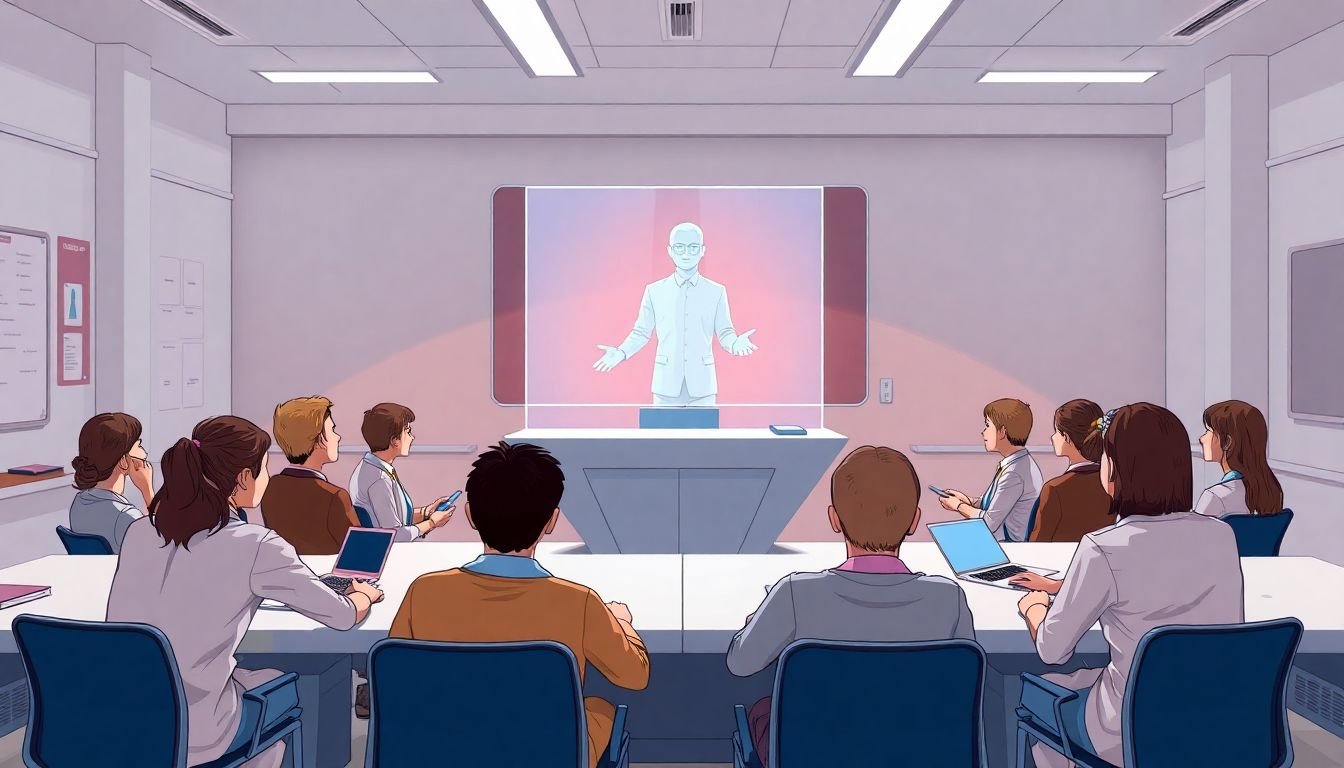
Understanding Holographic Guest Speakers in Virtual Classrooms
When people say “holographic guest speakers,” they usually mean a 3D-style projection of a real presenter—captured live or pre-recorded—and displayed in a way that feels like the person is standing in the room with students. It’s not a flat webcam feed. The whole point is depth cues (and often motion/gesture) that make students look up and actually treat it like a guest, not a video.
Here’s what I noticed across a couple of pilots: the engagement boost is real, but it’s not automatic. If the lesson is just “watch the hologram and take notes,” students still tune out. If you build in quick questions, short pauses, and structured interaction, that’s when the experience starts to feel different from a standard lecture.
Also, don’t get hung up on the word “hologram.” Different vendors use different approaches—semi-transparent displays, volumetric capture, or “portal”-style projection. The practical question is: does it look stable, does it sync well with audio, and can your students see it clearly from where they sit?
Market growth is often cited as strong, but I’d treat those numbers as directional unless you’re looking at a specific report for your region and segment. For now, the more useful takeaway is simpler: more schools are experimenting because remote experts are expensive and scheduling is a headache.
How Holographic Technology Operates in Education
Most classroom holographic setups follow the same general pipeline:
- Capture: the speaker is recorded (sometimes in a studio) or captured live using specialized cameras/arrays.
- Processing: the system turns that capture into a format that can be displayed as a 3D-style projection.
- Presentation/display: a local projector/display setup renders the speaker into the classroom. Many systems use semi-transparent screens or “portal” displays to create the illusion of presence.
- Interaction layer: audio (and sometimes latency-sensitive video) connects the guest with the classroom Q&A flow.
In my experience, the “it looks great” part is usually the last 10% of the work. The first 90% is making sure the room and the workflow cooperate.
What you typically need (hardware + software categories)
You won’t always get the exact same equipment list, but in education deployments you’ll usually see these categories:
- Display/projection hardware: a dedicated display unit or projection + semi-transparent surface for the illusion of depth.
- Camera/capture equipment (if live): often a vendor-provided camera rig or capture service.
- Streaming/compute: either on-site compute or cloud processing depending on the vendor’s model.
- Control software: a dashboard or app that handles calibration, playback, and (for live sessions) streaming sessions.
- Audio system: speakers/mics in the room so students can hear clearly and the guest can respond without awkward delays.
Bandwidth and latency: what to aim for
Live hologram experiences are sensitive. If your network struggles, students won’t just notice—your session will feel “off.”
- Bandwidth: aim for a stable connection that can handle high-quality video/audio without frequent drops. If you’re relying on Wi‑Fi, expect variability. Wired is usually safer.
- Latency: the goal is “conversational.” If Q&A takes too long to respond, students stop asking questions because it feels like talking into a delay.
- Jitter: even if average speed is fine, jitter (inconsistent packet timing) can cause stuttering or lip/audio mismatch.
What I recommend in practice: run a quick pre-flight test—start the stream, do a 2–3 minute back-and-forth (teacher asks, guest answers), and watch for audio sync and response delay. If it feels laggy in that tiny test, it’ll feel worse with a classroom full of students.
Lighting and alignment: the two things that break the illusion
Lighting isn’t just “nice to have.” It directly affects clarity and contrast. In rooms with bright overhead lights or strong reflections, the hologram can look washed out.
- Reduce glare: avoid shiny surfaces near the display.
- Control ambient light: dim the room if you can.
- Calibrate alignment: even small misalignment can cause the projected speaker to look “floating wrong,” which kills engagement.
One more thing: rehearse. If you can, do a full run-through with the guest’s exact slides/demos and the same classroom seating arrangement. It’s amazing how often the “perfect” setup in a test room doesn’t match the real one.
Note: The original draft mentioned 5G helping a lot. In reality, 5G can help where wired internet isn’t available, but it’s still dependent on signal strength, congestion, and the vendor’s streaming requirements. Don’t assume “5G = smooth.” Test first.
Applications of Holographic Guest Speakers in Education
So where do holographic guest speakers actually fit? In my view, they work best when the “presence” adds value—not when it’s just a fancy replacement for a video.
- Guest lectures with live Q&A: great for authors, researchers, and industry professionals who can answer questions in real time.
- STEM demonstrations: especially chemistry/physics concepts where students benefit from gesturing, pointing, and step-by-step explanations.
- Language exchanges: when students need conversational flow and the speaker can respond naturally to prompts.
- Remote field trip moments: use it when you want a narrator/expert to “stand in the room” while guiding students through a topic.
- Multi-campus events: a big win when multiple schools want the same expert but can’t coordinate travel.
Want a concrete example? A university could host a single guest (say, a climate scientist) and run the session across campuses. But the real success factor is the lesson plan: students at each campus need pre-submitted questions, a shared timeline, and a facilitation script so the guest isn’t improvising with 200 students at once.
When I’ve seen these sessions land well, the format usually looks like this:
- 3–5 minute hook (guest introduces the topic)
- 8–12 minute explanation with one “pause point” for questions
- 10 minute interactive segment (small group questions or a teacher-led Q&A queue)
- 3–5 minute wrap-up and a clear takeaway activity
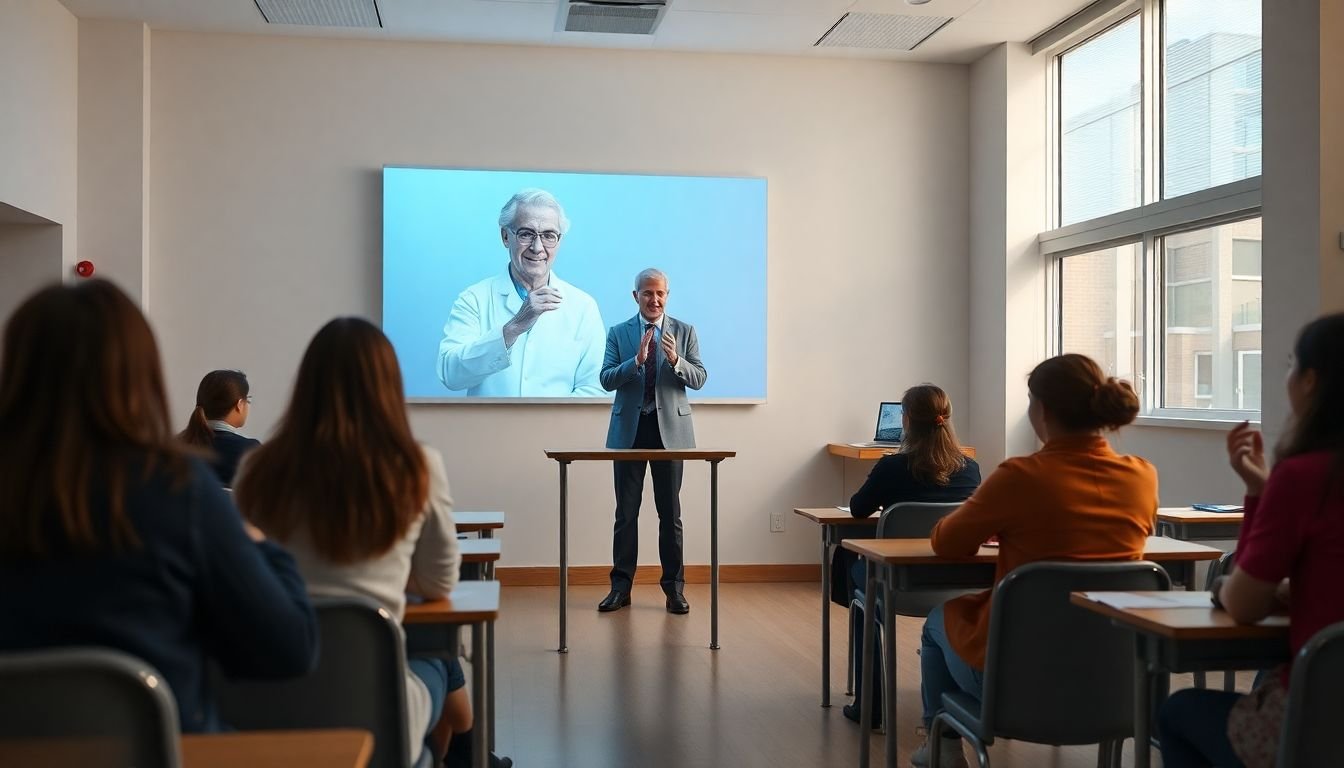
Real-World Success Stories of Holographic Guest Speakers in Education
I’ll be honest: the “success stories” you see online are often vague. They’ll say engagement improved, but they won’t tell you how they measured it.
That said, the pattern is consistent across credible deployments: schools use holographic guest speakers to reduce travel costs and scheduling delays, then they pair the technology with a structured interaction plan.
What the better outcomes usually look like
- Higher participation: more students submit questions than in a comparable live lecture.
- Better attendance: when the guest is a “must-see” expert, student turnout tends to increase.
- Improved confidence: short post-session surveys often show students feel more connected to the subject and more willing to ask follow-up questions.
If you want to replicate the same benefits, don’t just measure “did students like it?” Measure something you can compare:
- Number of student questions (or question submissions) per 10 minutes
- Attendance rate vs. a normal guest lecture (or vs. last year’s session)
- Short quiz scores before/after (even a 5-question check)
- Student perception survey (1–5 scale) on clarity and engagement
About vendor examples
The earlier version referenced HoloPresence and Vemotion. In real procurement, you’ll want to ask each vendor for:
- Specific education deployments in your region
- Whether the solution is live, pre-recorded, or hybrid
- What equipment they provide vs. what the school supplies
- Any documented results (even internal pilot metrics)
If you’re doing research, you can start by checking vendor pages and case studies directly. For related reading, you can follow these links exactly as provided:
If you’re interested in learning more about lesson planning and assessment design, you can also explore https://createaicourse.com/how-do-you-create-a-lesson-plan-for-beginners/ and https://createaicourse.com/how-to-make-a-quiz-for-students/.
Possible Challenges and How to Overcome Them
Holographic guest speakers can be amazing, but they can also be frustrating if you treat them like “plug and play.” Here are the issues I’ve seen (and how to handle them).
1) Cost and logistics
Setup can be pricey at first—especially if you need dedicated hardware, content capture, and staff training. The workaround is to pilot with a smaller scope:
- Run 1–2 sessions before committing to multi-month contracts.
- Ask about rental/portable kits if you don’t want to buy equipment outright.
- Plan the pilot during a time when you can dedicate tech staff and rehearsal time.
2) Staff training (and who “owns” the tech)
Teacher training isn’t the same as “someone can press start.” You need a clear tech owner—one person responsible for calibration, stream health, and quick fixes.
- Assign a tech lead (IT staff or a vendor coordinator).
- Train at least two people so you’re not stuck if one person is absent.
- Write down the steps: how to start the session, how to handle audio issues, and what to do if alignment looks wrong.
3) Network instability (the silent session killer)
Strong internet helps, but what matters is stability. If your stream stutters, students notice immediately.
- Prefer wired internet for the classroom feed.
- Close bandwidth-heavy apps on the same network during the session.
- Do a pre-flight test 24 hours before and again 30–60 minutes before showtime.
4) Lighting, reflections, and “why does it look off?” moments
If the hologram looks washed out, misaligned, or “ghosty,” it’s usually one of these:
- Room lighting too bright
- Reflections near the display
- Calibration drift
- Students sitting outside the best viewing zone
Fix it fast: dim lights, adjust seating to a clear sightline, and re-check calibration before you start the lesson.
5) Measuring impact (so you don’t rely on vibes)
After the session, gather feedback—but do it in a way that helps you improve next time.
- Ask what was clear vs. what was confusing
- Ask whether students felt like they could actually interact
- Track engagement metrics (questions, participation, quick quiz)
Tips for Making the Most Out of Holographic Guest Speakers
Here’s how to turn a hologram session into a real learning event. Think of this as a checklist you can run for each guest.
- Start small with a pilot: one class, one topic, one guest. Plan a 45–60 minute session so troubleshooting doesn’t eat the whole day.
- Use familiar content: pair the hologram with a lesson you already teach well. Don’t introduce a brand-new curriculum unit and a new tech stack at the same time.
- Build interaction into the agenda: for example, schedule 3 Q&A windows (after the hook, mid-lesson, and end). Students need predictable “when can I ask?” moments.
- Use question prompts: give students sentence starters like “I noticed…,” “Can you explain…,” or “What would happen if…?” This reduces awkward silence.
- Plan for engagement: try a quick poll or a 2-minute group discussion after the guest explains a concept, then have groups submit one question.
- Run a pre-flight tech test: check audio clarity, confirm the guest’s video/hologram sync, and verify that students can see the projection from their seats.
- Have a fallback: if something glitches, you should already have a backup plan (e.g., switch to audio-only, use slides, or show a pre-recorded clip).
- Leverage recorded holograms when live isn’t feasible: pre-recorded hologram segments can be great for consistency. Just make sure the classroom still has an interaction moment (teacher-led Q&A, worksheet activity, or follow-up discussion).
If you do these steps, you’ll stop treating holograms like a novelty and start using them like a teaching tool.
How to Prepare Your Classroom for Holographic Presentations
Classroom prep is where sessions are won or lost. Here’s what I recommend before any holographic guest speaker shows up.
- Choose the right room: you need enough space for students to see the projection clearly. If students are too far to one side, the illusion breaks.
- Control lighting: dim the lights if possible. Avoid direct glare on the display surface.
- Set seating for sightlines: place students so most of them are within the “best viewing zone.” I’d rather move seats for 10 minutes than fight through a bad experience.
- Use wired internet when you can: Wi‑Fi can be fine, but wired is more predictable for streaming quality.
- Assign a tech handler: one person checks calibration, adjusts glare, monitors the stream, and handles quick fixes.
- Prep students: tell them what to expect (“You’ll be able to ask questions,” “Watch for the prompt,” “Here’s how we’ll interact”). Students behave differently when they know what’s coming.
- Rehearse the flow: run a short dry run with the teacher script so the guest isn’t forced into awkward pauses.
That little prep work is often the difference between “cool but confusing” and “wow, that actually helped.”
Potential Impact on Education in the Next 5 Years
Will holographic guest speakers become more common? Probably in specific niches first—multi-campus programs, specialized STEM enrichment, and high-demand guest sessions.
But adoption won’t be universal overnight. The biggest constraints are budget, maintenance, privacy/compliance around capturing presenters, and accessibility (for example, ensuring students who need accommodations can still access the experience).
Here’s a realistic way to think about the next 5 years:
- More pilots turn into repeatable programs: schools will standardize lesson formats and technical workflows.
- Better streaming and devices: improved networks and more reliable hardware will reduce “tech day” problems.
- More partnerships: vendors will likely offer clearer education packages—training, content templates, and support.
- Higher expectations: students and teachers will demand smoother interactions, not just impressive visuals.
So yes, holographic tech could make learning feel more vivid and connected. Just don’t expect it to replace good teaching. It’s a delivery method—your lesson design still matters most.
FAQs
Holographic technology uses light and projection techniques to create 3D-style images that appear in space, so students can view and interact with a virtual speaker or object in a classroom setting.
They can deliver presentations, facilitate Q&A, and demonstrate concepts remotely—giving students a more “present” experience than a traditional video call.
They can boost engagement, give students access to expert speakers from anywhere, and support interactive learning when lessons are planned around the technology.