How to Design Courses for Screen-Reader Navigation in 10 Steps
I get it—making courses easy to navigate for screen-reader users can feel tricky and honestly a little overwhelming at first. I’ve been there. It’s frustrating when things aren’t structured well, focus gets weird, or a button announces itself like “blank” and you’re left guessing what it’s supposed to do. In our last course platform audit, I found heading levels skipped from H2 to H4 in a couple modules. The result? Learners could still technically move through the page, but the structure sounded wrong and it took longer to find the right section.
What changed for us was getting specific. Instead of “make it accessible,” we built a repeatable checklist: heading audit, skip link wiring, link text cleanup, table header mapping, and a quick screen-reader pass (NVDA + Chrome, plus VoiceOver on macOS). This post is basically the same playbook I used—so you can apply it to your own course without guessing.
And yes, you’ll still see the common best practices here. But more importantly, you’ll get concrete deliverables: snippets you can copy, test steps you can run, and examples of what “good” looks like.
Key Takeaways
Key Takeaways
- Use clear, descriptive headings with correct nesting (H2, H3, etc.). Don’t jump levels—skipping levels makes navigation harder and sounds “broken” to screen readers.
- Add a real skip link to your main course content, and use ARIA landmarks (like nav and main) consistently so users can jump between regions fast.
- Write alt text that explains the purpose of each image. If it’s decorative, use alt="" so screen readers don’t waste time.
- For tables, use <th> for headers and add scope where it helps. A caption also goes a long way for context.
- Make link text descriptive enough to stand alone. “Click here” forces extra guesswork; “Download the accessibility checklist” doesn’t.
- Keyboard access isn’t optional. Verify tab order, ensure focus is visible, and confirm interactive elements are reachable without a mouse.
- Forms should have proper <label> associations, clear instructions, and good grouping for related fields (fieldsets/legends for complex forms).
- Use captions for video and transcripts for audio (and double-check auto-captions). A small error can completely change meaning.
- Test with real screen reader software (I usually run NVDA + Chrome, then VoiceOver on macOS). Listen for how headings, links, and form controls are announced.
- Accessibility improves through repetition. Use tools like axe/WAVE, keep an eye on changes, and collect feedback from learners.
1. Build Course Structure with Clean Heading Levels
Headings aren’t just for visual scanning. In my testing, screen-reader users often jump between headings to find their place quickly—so if your heading structure is messy, the whole course feels messy.
Here’s the simple rule: use heading levels to reflect the page outline. H2 should be your main sections, H3 for subsections, and so on. If you have a module called “Designing Quizzes,” then “Creating Multiple Choice Questions” and “Grading and Feedback” should sit under that as subsections.
One thing I noticed during that platform audit: when we jumped from H2 straight to H4, NVDA started announcing headings in a way that made the “shape” of the content hard to understand. You can still read the content, but it’s slower and more confusing. Why make learners work harder?
Also, headings help SEO, too. Search engines use them to understand the hierarchy of your content, and it’s a nice bonus when your course pages are indexed.
If you want a practical starting point, plan your outline before writing. Tools such as Content Mapping can help you draft a heading map so you don’t realize halfway through that you’ve got H2 sections pretending to be H3 sections.
2. Add Skip Links + Landmarks So People Don’t Waste Time
Skip links sound small, but they’re one of the highest-impact accessibility tweaks. The idea is simple: when someone lands on your course page, they shouldn’t have to tab through the same header and menu every single time.
In practice, I implement a “Skip to main content” link near the top. It should be focusable and visible when focused (not permanently hidden). A basic pattern looks like this:
Skip link HTML snippet
<a class="skip-link" href="#main-course-content">Skip to main content</a>
<main id="main-course-content">...your lesson content...</main>
ARIA landmarks also help. Using landmark elements like nav, main, aside, and footer gives screen readers a quick “map” of the page, so users can jump to the region they want instead of scanning everything sequentially.
Quick keyboard checklist (this is what I actually do):
- Press Tab from the top. Can you quickly reach the skip link?
- Activate the skip link. Does focus move to the main lesson area (not just the top of the page again)?
- After skipping, continue tabbing. Does the focus order feel logical (left-to-right, top-to-bottom)?
- Do you ever get trapped in a widget (like a modal) without a clear way to exit?
These checks don’t take long, and they catch the “navigation friction” issues that automated tools often miss.
3. Write Alt Text That Explains Purpose (Not Just What It Looks Like)
Images are part of the learning experience. But for screen readers, alt text is the learning experience. If you leave it blank or write vague descriptions, you’re basically removing context.
Here’s what I aim for: alt text should tell the user what the image is for. Is it showing a process? Highlighting an example? Supporting a statement in the paragraph?
Instead of:
"diagram"
Use something like:
"Flowchart showing the steps to complete the assignment"
Keep it concise. If the image needs more detail, don’t cram it into alt text—use a nearby explanation or a longer description.
Decision rule I use:
- Decorative image: alt=""
- Informative image: alt text explains meaning/purpose
- Complex chart/graph: caption + a longer text description (often adjacent text or a transcript)
On charts, I’ve found captions work well when they summarize the takeaway, and then the detailed description covers the exact values and relationships. That way, learners can choose whether they want the quick summary or the full breakdown.
4. Make Tables Readable with Proper Headers + Scope
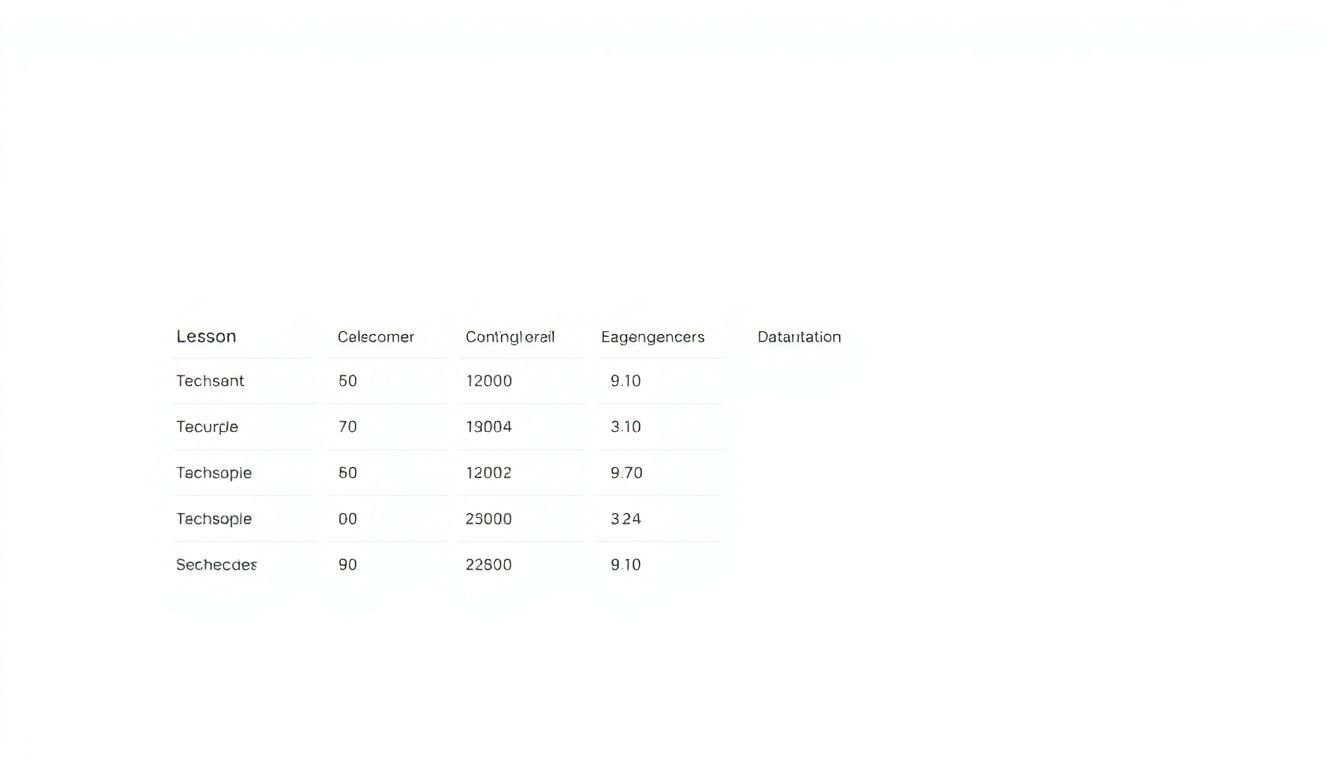
Tables are a lifesaver for organizing data in courses—progress trackers, grading breakdowns, schedules. But they can also become a nightmare if you don’t mark headers correctly.
Here’s what I recommend: use <th> for header cells, and associate them with the correct data cells. The scope attribute helps screen readers understand whether a header applies to a whole row or column.
Example: accessible table markup
<table>
<caption>Weekly lesson completion status</caption>
<thead>
<tr>
<th scope="col">Lesson</th>
<th scope="col">Completion Status</th>
<th scope="col">Date</th>
</tr>
</thead>
<tbody>
<tr>
<th scope="row">Lesson 1</th>
<td>Complete</td>
<td>2026-04-01</td>
</tr>
</tbody>
</table>
In my own NVDA walkthroughs, the difference is obvious: with proper headers, users hear “Lesson 1, Complete, Date …” as they move through cells. Without headers, they just hear raw cell values with no context.
Also, don’t forget the caption. It’s not just “nice to have”—it tells users what the table represents before they start exploring.
If you want to plan ahead, use Content Mapping to outline your table sections and header strategy before you build the layout.
5. Upgrade Link Text So It Makes Sense Out of Context
Link text is where a lot of course accessibility breaks down. “Click here” and “read more” are common, and they’re also useless for screen-reader users because they don’t convey destination or purpose.
Instead, write link text that stands on its own. For example:
- “Download the accessibility checklist (PDF)”
- “View the quiz sample for Module 2”
- “Open the grading rubric for Assignment 1”
Context still matters, though. If a link appears inside a paragraph about assessments, then “take the sample quiz” might be perfect. If it appears in a list with no surrounding explanation, you’ll want the link text to include the missing context.
One more practical tip: don’t rely on icons alone. If you use an icon for download, include accessible text or a label so screen readers don’t announce something meaningless like “image” or “download icon.”
And if you’re building lesson structure alongside this, How do you write a lesson plan for beginners? can help you think through where resources and links belong.
6. Do a Real Keyboard Pass (Tab Order + Visible Focus)
Keyboard accessibility isn’t “nice.” It’s the baseline for anyone who can’t use a mouse. In my experience, the biggest problems show up in focus order, focus visibility, and interactive widgets.
Here’s how I test it:
- Open the course page in a browser.
- Use Tab only—no mouse, no trackpad.
- Check that focus moves to every interactive element: links, buttons, form fields, quiz options.
- Confirm focus order matches the visual order. If the layout is “left column then right column,” tab order shouldn’t jump randomly.
- Make sure focus is visibly styled. If you’ve removed outlines or rely on hover-only styles, keyboard users will struggle.
Also watch for focus traps. If you open a modal, drawer, or pop-up, pressing Tab shouldn’t let focus disappear behind the overlay. And there should always be a clear way to close it (usually “Esc” and a visible close button).
One honest note: adding tabindex can fix edge cases, but it can also create chaos if misused. If your HTML order is correct, you usually won’t need to mess with tabindex at all.
7. Make Forms Actually Usable with Labels + Instructions
Forms are where learners hit friction fast—sign-in, enrollment, assignment uploads, quiz answers. If labels and instructions are missing or unclear, screen-reader users end up guessing what to type.
Here are the rules I follow:
- Every input needs a proper <label> tied to it. Don’t rely on placeholder text as the only label.
- Use descriptive labels like “Email address” or “Your full name,” not “Enter value” or “Type here.”
- Add instructions when it matters. For example: “Upload a PDF (max 10 MB)” or “Enter a valid email format (name@example.com).”
- For grouped fields, use <fieldset> and <legend>. It gives screen readers meaningful context.
- Make button text specific when possible. “Submit assignment” is clearer than just “Submit.”
Testing tip: run through the form with a screen reader and confirm that each field announcement includes the label and any required/optional status. If your form shows “required” visually but not in accessible text, users won’t know.
In one course build I reviewed, the placeholders looked fine visually—but when you tabbed into the fields with NVDA, the announcements were basically empty. The fix was adding real labels and associating them with inputs, not just placeholders.
8. Captions + Transcripts: Don’t Trust Auto-Captions Blindly
Multimedia is great for engagement, but it has to be accessible. Captions for video help hearing-impaired learners and also help anyone learning in a noisy environment. Transcripts help users who prefer reading and they improve searchability.
About caption accuracy: in my workflow, I aim for “good enough to understand everything,” not perfection—but you should still review for errors that change meaning. A single wrong word can send someone down the wrong path, especially in instructions.
Here’s what I do in practice:
- If captions are auto-generated, I review them end-to-end once.
- I pay extra attention to numbers, dates, and technical terms (those are where mistakes tend to happen).
- If a video includes on-screen text (like “Step 2: Click Settings”), I make sure captions include it or I add a short description.
- For audio-only content (podcasts, voice notes), I provide a transcript even if it’s rough—then I clean it up for accuracy.
Example of a real-world caption problem I’ve encountered: the transcript said “upload the CSV file” when the speaker actually said “upload the PDF file.” Learners didn’t realize the mistake until they hit the upload step. Reviewing captions once prevents that kind of costly confusion.
Bonus: captions and transcripts can also improve SEO because they create indexable text for search engines.
9. Test Like a Learner: NVDA/VoiceOver + Keyboard-Only Pass
Tools help, but screen readers are the truth. The best way to know if your course is accessible is to test it with actual software and actually listen.
Here’s my typical testing setup:
- NVDA on Windows + Chrome (fast iteration)
- VoiceOver on macOS + Safari (different announcement patterns)
What I listen for while testing:
- Heading navigation: do headings appear in the right order and levels?
- Link announcements: do links describe destination, or do they sound like “link” with no context?
- Image announcements: do informative images get meaningful alt text, or do decorative ones get announced unnecessarily?
- Form controls: are labels read correctly, and are required states communicated?
- Tables: do users hear the right row/column headers when moving through cells?
I also use online guidance like WebAIM’s Screen Reader Testing when I’m building a new test checklist from scratch.
One last thing: test on more than one page type. A “lesson page” that’s accessible doesn’t automatically mean your “quiz page” is accessible. Different widgets = different failure points.
10. Keep Improving with Real Resources (and Feedback)
Accessibility isn’t a one-time checkbox. New course features, new embeds, updated themes—any of that can accidentally break things.
I keep a lightweight routine:
- Check major updates (theme/plugins/platform changes) and re-test key pages.
- Use automated tools periodically, not as the only source of truth. I like axe for quick scans and WAVE for visual feedback.
- Follow resources like WebAIM and the W3C Accessibility guidance so you’re not relying on outdated advice.
- Collect learner feedback. If someone says, “I can’t find the quiz question,” that’s a real debugging clue.
Also, if you can, test with actual users or at least educators/developers who use screen readers. They tend to spot usability issues that automated checks won’t catch.
Do this consistently and your course becomes easier for everyone—not just people using assistive technology. That’s the goal.
FAQs
Headings help organize content in a way that’s easy to scan and easy to navigate. For screen reader users, heading structure is one of the fastest ways to jump to the right section. When headings are nested correctly, the course outline becomes predictable and readable.
Skip links let users jump past repetitive navigation and land directly on the main content. ARIA landmarks (and semantic elements like main and nav) label different regions of the page so assistive technologies can present a “map” and users can move between sections efficiently.
Write alt text that explains what the image is conveying or why it exists in the learning material. If an image is decorative, use an empty alt attribute (alt="") so screen readers skip it. If it’s informative, include the key details in plain language.
Accessible tables use proper header cells (<th>) and associate data with those headers (often with scope or a well-structured thead/tbody). This helps screen readers announce the right context as users move through the table.