How to Use B-Roll Footage to Enhance Your Lectures in 10 Easy Steps
Using B-roll in your lectures isn’t about decorating your slides with random clips. It’s about helping people see what you’re explaining—so the ideas land faster and stick longer. I’ve watched the difference firsthand: when I swapped out long stretches of “just me talking” for a few well-timed visuals, my students asked better questions and seemed less lost during the tricky parts.
What I like most is that you don’t need fancy gear to do it. Sometimes it’s a simple diagram, a close-up of a tool, or a short screencast. Other times it’s archival footage that gives instant context. If you want a practical, repeatable way to plan and edit B-roll, here’s how I do it—mapped out as 10 steps.
Key Takeaways
- Use B-roll to reinforce your message, not distract from it. In my edits, the sweet spot is usually 3–5 seconds per clip for most explanations, and longer only when you’re slowing down for emphasis.
- Plan B-roll before you record or edit. I build a quick shot list tied to each main idea so I’m not hunting for clips mid-edit.
- Match the footage type to the learning goal: archival footage for context, close-ups for details, diagrams/animations for processes, and screencasts for “watch me do it” steps.
- Edit for clarity: keep transitions simple, sync visuals with narration, and add captions when needed. Accessibility isn’t optional—it’s part of good teaching.
- Avoid common traps like irrelevant clips, overly flashy edits, and inconsistent visual styles. If it doesn’t add meaning, cut it.
- Build your own reusable library. After a few lectures, you’ll start reusing the same high-quality clips for recurring concepts, which saves a ton of time.
Use B-Roll to Enhance Your Lectures
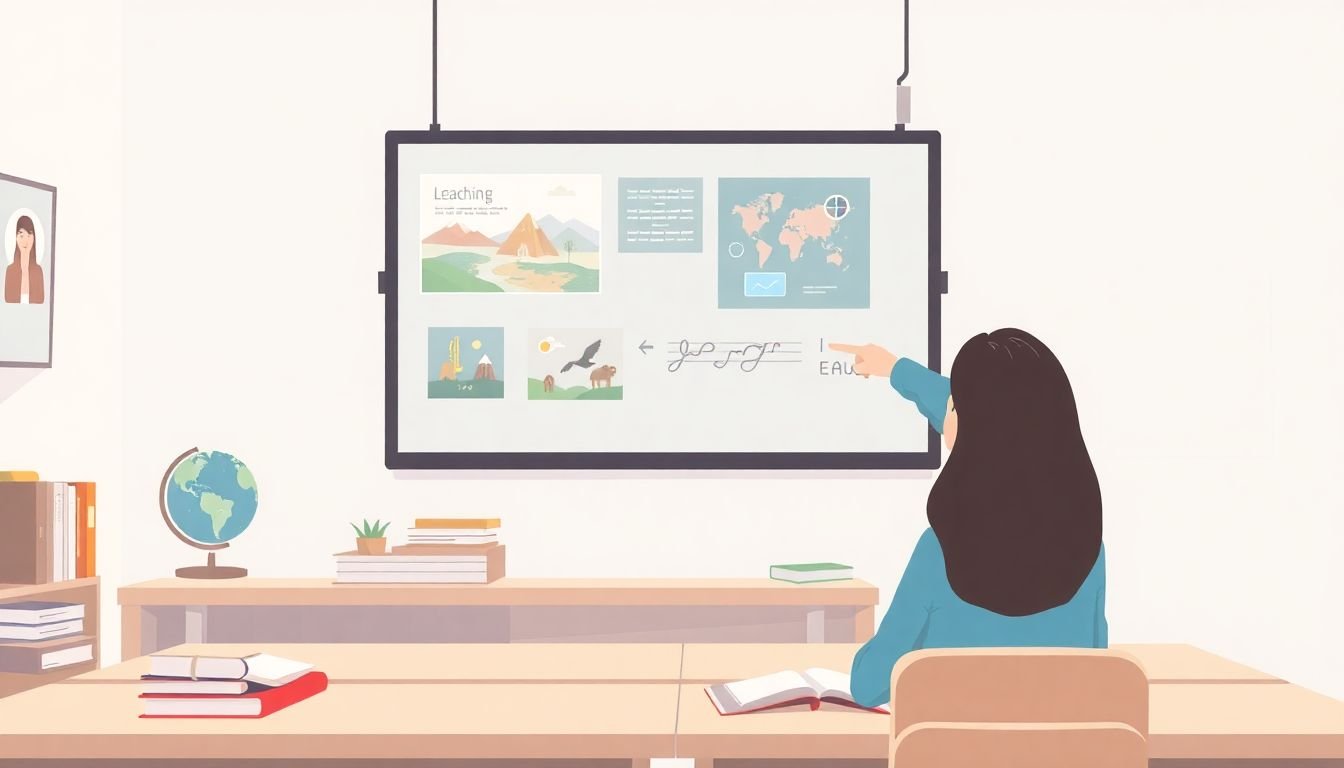
Here’s the real goal: keep your students oriented while you teach. Adding B-roll does that by reinforcing your explanation with visuals—so the concepts aren’t stuck “in the air.”
In my experience, B-roll works best when it’s doing one of three jobs:
- Clarify (show what you mean—like a diagram or close-up)
- Contextualize (show where/when/why—like archival footage or a map)
- Guide (show the steps—like a screencast or process video)
About clip length: I don’t follow a strict universal ratio because lectures vary. But I do use a simple pacing rule. When you’re explaining something dense, I’ll place a B-roll clip every time you introduce a new sub-idea. In practice, that often lands around 3–5 seconds per clip for most lessons. Longer clips are fine when the viewer needs to watch an action (like a procedure) without interruption.
For example, while teaching a science process, I’ll cut to:
- a close-up when I mention a specific part of the process
- a short animation when the mechanism is hard to describe
- an establishing shot when I step back and explain the bigger picture
And yes—plan it. If you don’t, B-roll becomes random decoration. If you do, it turns into a smooth visual story that supports your narration.
Define B-Roll and Its Purpose in Lectures
B-roll is the supplementary footage you use alongside your main teaching shot (your talking head, slides, or primary presentation). The point isn’t to “fill time.” It’s to add depth and make your explanation easier to follow.
Unlike A-roll (usually the core speaking/presentation), B-roll illustrates, emphasizes, or explains what you’re saying. If I’m teaching anatomy, a detailed diagram or close-up video helps students visualize what I’m describing. If I’m teaching history, archival footage adds authenticity and context. If I’m teaching urban planning, showing a real street or map makes the topic feel concrete.
One more thing I’ve learned: B-roll can also help with pacing. When viewers get fatigued staring at one frame, a well-timed visual reset keeps attention from drifting.
Plan Your B-Roll Content for Lectures
This is where the “10 easy steps” actually start. Planning is the difference between B-roll that feels intentional and B-roll that feels like a slideshow.
Step 1: Define the learning objective for the segment. What should students be able to do or explain after this part? Write it as one sentence (e.g., “Students can describe how diffusion moves substances across a membrane”).
Step 2: Break the lecture into main ideas. I usually split it into 3–6 chunks per section. Each chunk gets its own mini-purpose.
Step 3: Create a shot list tied to those chunks. For each chunk, I jot down:
- the moment in your script (timestamp or phrase)
- the B-roll type (close-up, map, animation, screencast, archival, etc.)
- the clip length target (most often 3–5 seconds)
- the on-screen cue (optional text like “Step 2: Mixing” or “Why it matters”)
Step 4: Decide what you’ll source vs. what you’ll shoot. If you need something specific (like your own lab setup), shoot it. If you just need context (like “city traffic” or “anatomy diagram”), stock libraries can save time. In my workflow, I keep a small shortlist of go-to sources, including Storyblocks for variety.
Step 5: Build a simple storyboard (even if it’s rough). You don’t need art school. A 1-page outline beats a blank timeline. It keeps editing from turning into guesswork.
Incorporate B-Roll Types That Support Your Teaching
Step 6: Choose the right B-roll type for each teaching moment. Here’s what I reach for most often:
- Archival footage: great for history, biographies, or “this happened in context.” (If you’re writing lesson plans, you can pair this with archival footage ideas.)
- Close-ups: perfect when you’re describing a detail (a tool, a diagram section, a texture, a component).
- Establishing shots: use when you need students to orient—where are we, what’s the setting?
- Diagrams/animations: when something is too small, too fast, or too abstract to show directly.
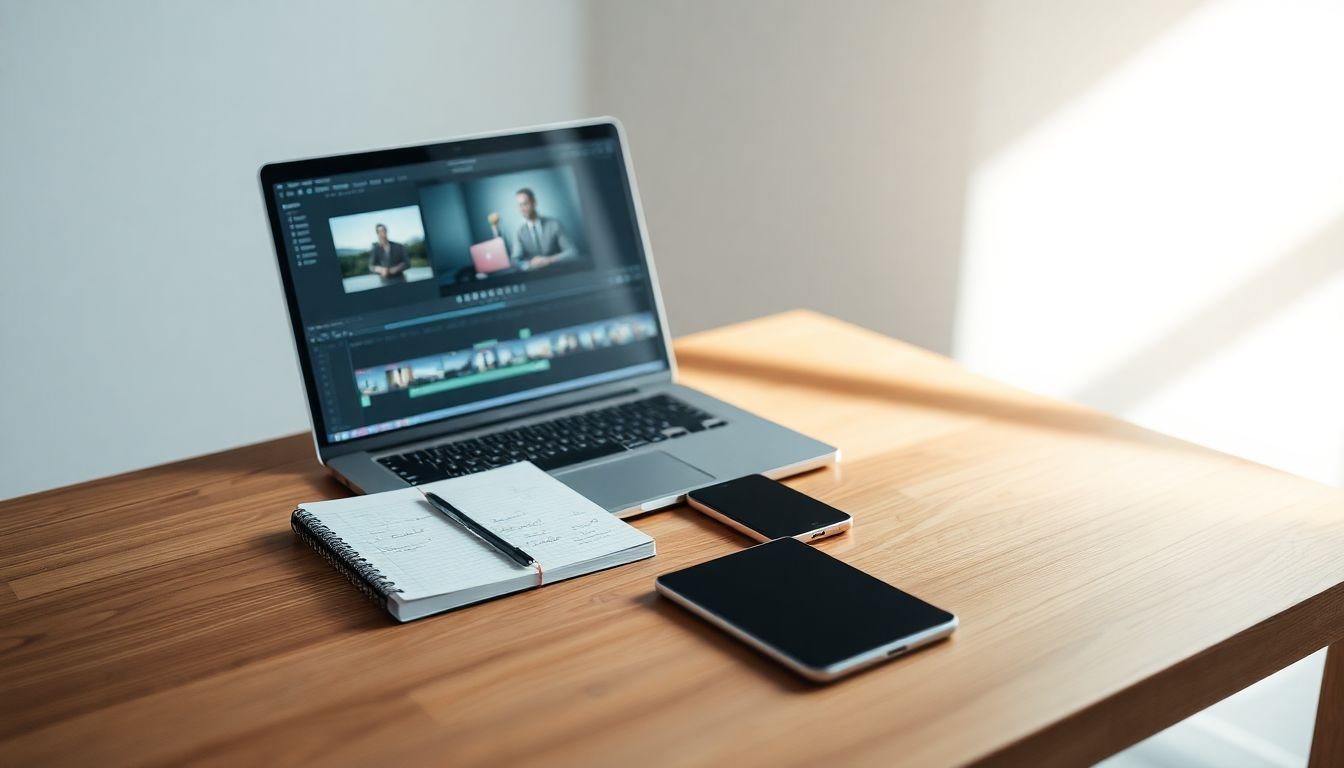
- Screencasts: when the skill is “watch and follow” (software steps, calculations, workflows).
- Reenactments/staged scenes: helpful for scenarios you can’t capture in real life (but keep them realistic and labeled if needed).
The trick is simple: every clip should answer “why am I seeing this right now?” If it doesn’t, cut it.
Best Practices for Editing B-Roll into Your Lectures
Step 7: Edit with pacing in mind. I aim to keep B-roll clips short for explanation moments. If you’re emphasizing something, you can extend the clip slightly—but don’t let it drag. A good quick test: if the clip is longer than the sentence it supports, you probably need to trim.
Step 8: Sync visuals to narration. This is the part that makes B-roll feel “natural.” Instead of placing a clip at the start of a paragraph, I place it at the exact phrase where the idea changes. For example, when I say “Here’s the key mechanism,” the diagram appears right then.
- Use transitions sparingly. Quick cuts usually keep focus better than fancy fades.
- Overlay text only when it clarifies. Too much text turns into noise.
- Add subtitles/captions if your audience needs them (and in many platforms, it’s a must-have).
Step 9: Preview like a student, not like an editor. I always watch the first pass with the volume at a normal level and ask: “Can I follow this without getting distracted?” If the B-roll steals attention, I shorten it or simplify it.
Step 10: Do a final accessibility and compliance check. That means captions, readable text, and—if you’re using third-party footage—verifying you’re allowed to use it for your intended distribution.
How to Source Quality B-Roll for Your Lectures
Finding B-roll is easier than it used to be, but quality varies a lot. I’ve learned to search with intent and then reject anything that feels “almost right.”
- Use stock libraries when you need speed and variety. You can start with stock libraries as a reference point for sourcing ideas, and then pick a site that matches your needs.
- For example, Storyblocks has a lot of HD and 4K options, which helps if your lecture is going on YouTube or a course platform.
- Check licensing terms before you publish. “Royalty-free” doesn’t always mean “free for any use.” Plans and regions can change what’s allowed (commercial vs. educational, redistribution, or requiring attribution).
- If you want to shoot your own B-roll, a smartphone + tripod + decent lighting beats “mystery quality” stock footage every time.
- Build a small clip library for repeat topics. After a few lectures, you’ll stop reinventing the wheel.
Quick licensing reminder: always verify each asset’s license on the provider’s site (and keep a note of the license type you used). If you plan to distribute commercially, double-check that specific permission.
Tips for Using B-Roll to Keep Your Audience Engaged
B-roll is one of the best tools for maintaining attention in recorded lectures. But it has to be used strategically.
- Break up long talking segments. If you’re talking for 20–30 seconds straight, add a visual cue somewhere in the middle.
- Use subtle motion. Slow pans, slight zooms, or animated overlays can make static clips feel alive (without turning it into a music video).
- Change shot types. A close-up followed by a diagram followed by a screencast keeps things moving.
- Match the emotional tone. If you’re explaining a serious concept, don’t use upbeat, colorful B-roll that clashes with your narration.
- Highlight stats with infographics. If you mention numbers, show them. Even a simple bar chart overlay can reduce confusion.
- Test with real viewers. I usually send a private link to 2–3 people. If they say “I liked the visuals but I didn’t understand how it connected,” I adjust the timing and add clearer on-screen cues.
One honest mistake I made early on: I used a really cool “busy city” clip during an explanation that had nothing to do with the specific point I was making. It looked interesting, but it pulled attention away from the actual lesson. I replaced it with a map + a short diagram, and the feedback instantly improved.
Common Mistakes to Avoid When Using B-Roll in Your Lectures
B-roll can elevate your lecture fast—unless you fall into a few common traps.
- Overloading with flashy clips. If the visuals are distracting, your students will stop listening.
- Using low-quality footage. Blurry or outdated clips make the whole lecture feel less credible.
- Choosing irrelevant visuals. “It kind of matches” isn’t enough. Tie clips to the exact idea you’re teaching.
- Leaving clips too long. Long B-roll feels like filler. Short, purposeful clips feel like support.
- Mixing styles without reason. If your lecture uses clean diagrams, don’t suddenly jump to gritty handheld footage unless it serves a purpose.
- Skipping captions. Accessibility matters. Captions help everyone—especially in noisy environments.
- Ignoring copyright/licensing rules. Always confirm what you’re allowed to do with third-party assets.
Final Tips for Making the Most of B-Roll in Your Lessons
If you want B-roll that actually improves learning, keep it intentional:
- Plan your visuals in advance and label them in your editor timeline (so you know what each clip is for).
- Use B-roll to clarify, emphasize, or add context—never as a substitute for explaining.
- Regularly ask: “Does this clip strengthen the message?” If it doesn’t, remove it.
- Experiment, but keep what works. I’ve found that once a style performs well (timing + readability), it’s worth reusing across lessons.
Do that, and your lectures won’t just look more polished—they’ll feel easier to understand.
FAQs
B-Roll is supplementary footage that supports your main teaching content (your talking head, slides, or primary presentation). It’s useful because it helps students visualize concepts, adds context, and breaks up long stretches of speaking so attention doesn’t drop.
Start by listing your main concepts, then match each concept to a visual that answers “what should students see right now?” After that, make a quick shot list with timestamps (or script phrases) and clip-length targets. If you plan this before editing, you’ll save a lot of time later.
You can create your own B-roll (smartphone + good lighting is enough for many topics) or source clips from stock libraries and public resources. Just make sure the footage matches your topic and double-check the license for your intended use (especially if you’re publishing commercially).
Yes. For live lectures, you’re often limited to what you can display in the moment (slides, preloaded clips, or simple visuals). For recorded lectures, you can cut precisely to narration, choose the best clip moments, and add captions or on-screen labels. In both cases, the “purpose” rule stays the same: the visual must support the point you’re making.
If your B-roll includes important on-screen text, narration, or context that students need to understand, captions (and readable on-screen labels) help a lot. Even when the B-roll is “just visuals,” captions for your main audio and clear text overlays make the whole lecture easier to follow.
Only if you have the right permissions. That usually means consent from the student (and sometimes additional approvals, depending on your institution and platform). Also think about privacy—faces, names, and identifiable details can create issues even when the footage is “internal.”
Don’t just assume “royalty-free” covers everything. Check each asset’s license for your exact use case (commercial vs. educational, redistribution, and platform restrictions). If a provider offers different tiers, make sure the tier you bought matches how you plan to publish.