Lighting Techniques for Webcam Recordings: 9 Easy Steps
If you’ve ever looked at your webcam footage and thought, “Why do I look so flat?” you’re not alone. Bad lighting doesn’t just make your video look dull—it changes your skin tone, exaggerates shadows under your eyes, and can even make your background steal attention. The good news? You can fix most of it with a few practical moves and some cheap gear.
In my experience, the biggest improvements come from (1) getting the light in the right spot and (2) matching it to what your camera is doing. So I’m going to walk you through 9 easy steps you can actually set up today—plus what to watch for when things go wrong.
Key Takeaways
Key Takeaways
- Start with natural window light if you can. If not, use a ring light or LED panel in front of you and diffuse it to avoid harsh hotspots and ugly shadows.
- Light direction matters: front or slightly side lighting reduces shadows. Background lighting (kept subtle) helps you separate from the wall.
- Place your main light around eye level (or slightly above) and angle side lights about 45° toward your face for depth without deep shadows.
- To reduce shadows, use a second light or bounce light with a reflector/foam board. Also watch for cluttered backgrounds that create distracting shapes.
- A simple 1-2-3 setup works: key light in front, fill light angled to soften shadows, and a background light for separation.
- Budget tools can still look great: ring lights, softboxes, clip-on panels, and DIY diffusers (shower curtain, parchment paper).
- Keep distances consistent: too close can create glare/hotspots; too far can make your face look dim. Use camera exposure/WB to lock the look.
- Test with short recordings and check on multiple devices. Look for hotspots, underexposure, and color casts—then adjust distance/angle and white balance.
- Watch for common issues like glasses glare, mixed color temperatures, and flicker from some LEDs. Small adjustments (even 2–3 inches) matter.
1. Achieve Optimal Lighting for Webcam Recordings
Getting your lighting just right can make your webcam videos look sharper and way more “you’ve got it together.” I’ve noticed the difference immediately—especially around the eyes and the jawline, where shadows can make you look tired even if you’re not.
Start with a natural light source. If you can, sit facing a window so the light hits your face from the front. Window light is soft, and it usually avoids that harsh, shiny look you get from some LEDs.
If natural light isn’t enough (or it’s nighttime), use an affordable ring light or LED panel. Put it directly in front of you, then raise it slightly above eye level—roughly 2–4 inches (5–10 cm) higher—so it lights your face without throwing shadows up under your chin.
One quick thing I always do: I diffuse the light. Even a simple diffuser makes a noticeable difference. If your light is too harsh, you’ll get bright hotspots on your forehead or cheeks. A softbox, a lamp shade, or a DIY diffuser (like a shower curtain) can help smooth it out.
And yes—moving it matters. I’ve had “small” changes turn into big wins. For example, in a 10x12 ft room (about 3x3.7 m), I tested a ring light at about 18 inches (45 cm) from my face. When I moved it up by ~3 inches (7–8 cm) and angled it downward slightly, the shadows under my eyes dropped a lot. Same brightness setting. Different placement.
The goal is simple: avoid strong shadows and avoid blowing out highlights. Keep tweaking until your face looks evenly lit, not flat and not glare-y.
2. Understand Key Lighting Principles
Lighting isn’t just “having lights on.” It’s about how the light falls on your face and how it interacts with your space.
Here are the principles that actually show up on webcam footage:
1) Direction beats intensity. Light from the front or slightly side reduces shadows. If the light is behind you, you’ll create a silhouette and your face will look darker than it should.
2) Balance your subject vs. background. If your background is brighter than your face, people’s eyes go there. Keep the background relatively darker or evenly lit so you stay the focus.
3) Color temperature affects skin tone. Warm light (around 3000K) can feel cozy, while cooler light (around 5000K) looks more “daylight/clean.” If you use mixed sources (like daylight + an LED), your skin can look weirdly orange or bluish.
4) Three-point lighting is the formula. Key light in front, fill light to soften shadows, and a background light (or hair light) to separate you from the backdrop. You don’t need all three at full power—subtle counts.
For many webcam setups, you can get 80% of the result with front-facing light plus a little fill. But if you want that “not just a Zoom call” look, the three-point idea is worth copying.
3. Set Up Front-Facing Lighting
This is the easiest win: put your main light in front of you, at eye level or slightly above.
If you’re using a ring light, position it so it “wraps” around your webcam. That usually means the ring is centered with your face/webcam and not off to the side. Ring lights can look great, but they can also create a shiny catchlight in glasses and a very “flat” look if you don’t diffuse them.
If you’re using a panel or softbox, aim it toward your face at about a 45-degree angle. Not 90 degrees (straight from the side), not behind you—somewhere in between so it adds depth without carving deep shadows.
Now the two placement rules I’d actually bet on:
- Don’t place the light too close. If your light is within ~12 inches (30 cm) of your face, you may get hotspots (especially on forehead/nose) and blown highlights.
- Don’t place it too far. If the light is beyond ~5–6 ft (1.5–1.8 m), your face can go dim and your camera boosts gain, which adds noise.
For exposure: if your webcam app shows brightness/levels, aim for a balanced image where your face isn’t clipping. A quick practical target: keep your face looking bright but not “white.” If you have access to a histogram or waveform, center the exposure so skin tones sit comfortably in the midrange.
One more thing: avoid placing lights directly behind you. If you do, your camera will struggle to expose your face, and you’ll end up with that washed-out silhouette look.
4. Minimize Shadows in Your Videos
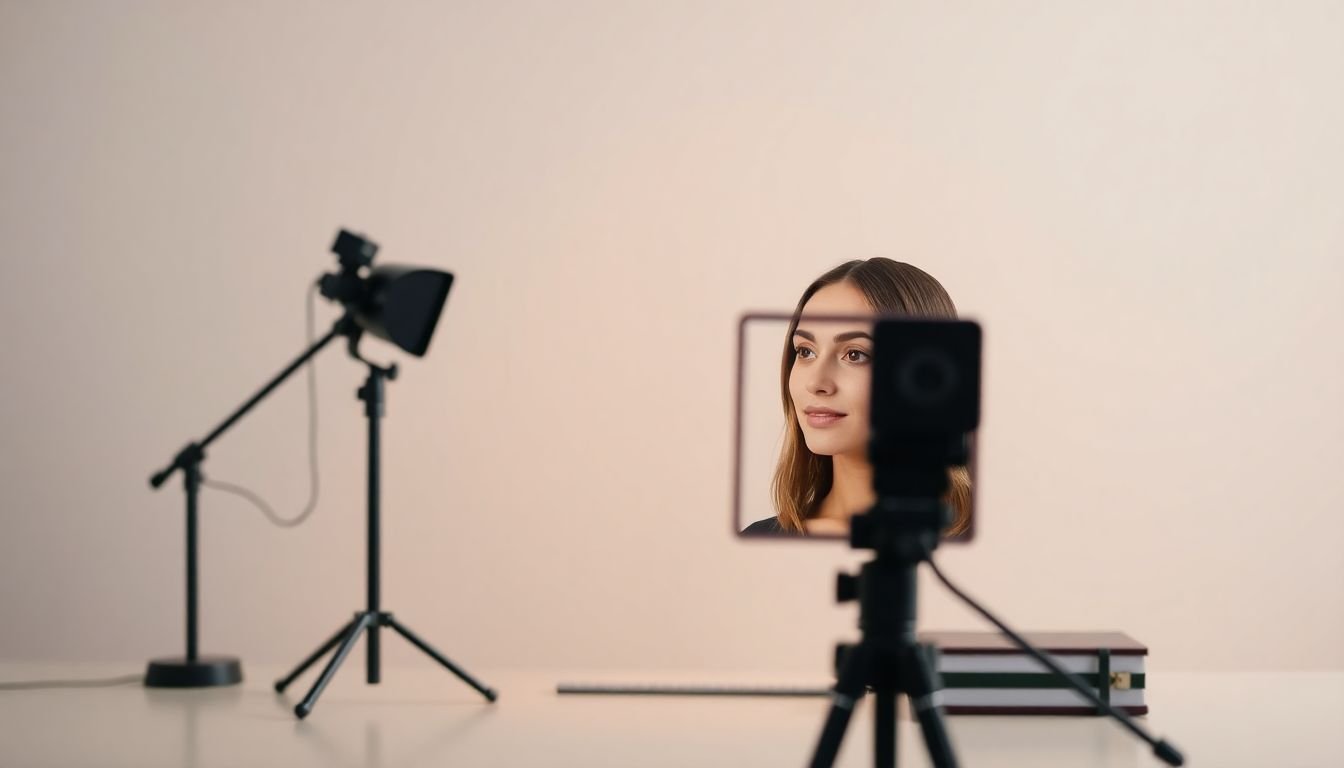
Shadows can make you look unpolished fast—especially under eyes, along the sides of your nose, and in the background behind your shoulders. The fix is usually easier than people think.
Use fill light. If you only have a key light, shadows will be strong. Add a second, softer light or bounce light to fill them in. Think “reduce contrast,” not “make everything bright.”
Here’s a concrete setup that works for most people:
- Key light: front/45° angle, around 18–30 inches (45–75 cm) from your face.
- Fill light: place it slightly to the opposite side, lower intensity—often around 50–70% of your key light brightness.
- Angle: keep fill light closer to 30–60° from your face so it smooths shadows instead of creating new ones.
Diffuse everything. Diffusers spread the light and soften transitions. If you don’t have a softbox, try a simple diffuser over the panel. If your shadows are still harsh, diffusion is usually the missing piece.
Use a reflector. A white foam board or a reflector placed near your non-lit side can bounce light back onto your face. In a pinch, even a clean white poster board works.
Keep the background simple. Clutter behind you can cast weird shapes and shadow patterns. I’ve seen this in small rooms where a bookshelf or hanging item creates moving shadows every time you shift your posture.
If you’re troubleshooting: try moving your lights 2–3 inches (5–8 cm) closer or farther first. That tiny shift changes the shadow size and direction more than you’d expect.
5. Create a Simple 1-2-3 Light Setup
If you don’t want to overthink it, copy this. It’s basically the “good enough to look professional” setup.
Light 1 (Key light): main light in front of you. Place it around eye level or slightly above. Distance usually lands around 18–30 inches (45–75 cm) from your face.
Light 2 (Fill light): add a softer light at an angle to reduce shadows. Use about 50–70% of the key light intensity and aim it toward the darker side of your face.
Light 3 (Background light): place a light behind you aimed at the wall—not directly at your head. Keep it subtle. If your background light is too bright, it’ll compete with you and look distracting.
Here’s what I noticed when I tested two approaches in the same room: a single ring light vs. a key+fill setup. With only the ring light, my face looked bright but a bit “flat,” and shadows under my chin were still noticeable. When I added a second fill (even a small panel), the shadow edges softened and my expression looked more natural. Same camera, same distance—just better light balance.
Quick tweak: if your background is too distracting, dim the background light first. Don’t crank your key light harder to compensate—that usually makes skin highlights clip.
Once it looks good, lock the positions and take a quick “before/after” test. Consistency is half the battle with webcam lighting.
6. Choose Affordable Lighting Tools
You really don’t need to go crazy on gear. What matters is whether you can control brightness, color temperature, and diffusion.
Here are budget-friendly options that actually make sense for webcam recordings:
- LED ring lights: easy setup, flattering for many people. If you wear glasses, be ready to deal with reflections (more on that later).
- Softbox or panel kits: you’ll get smoother light if you can diffuse it. Look for adjustable brightness and color temperature.
- Clip-on LED lights / portable panels: great for small spaces. Make sure they have color temperature adjustment (or you’ll fight mixed lighting).
- DIY diffusers: shower curtains, parchment paper, or a translucent fabric can soften harsh beams.
When shopping, I always check for:
- Adjustable brightness (so you can set fill vs key)
- Color temperature control (so you can match daylight or keep everything around 4000–5000K)
- Flicker-free operation if possible (some cheaper LEDs flicker and webcams can capture it)
Also—start small. Build your setup gradually. One strong key light plus a simple diffuser often beats a complicated setup you can’t position well.
7. Position Your Lights for the Best Effect
Light placement is where most people get stuck. Here’s the rule of thumb I use: if the lighting looks “off,” it’s usually because the angle is wrong or the distance is inconsistent.
Main light (key): eye level or slightly above. Angle it toward your face.
Side light (fill): about 45° from your face. If you’re seeing deep shadows, bring the fill closer to your face or increase its brightness a bit.
Background light: behind you and aimed at the wall. If the wall is too bright, dim it or angle it down so it lights the background without lighting your head.
If you’re using a ring light, keep it centered with your webcam. If your face looks washed out, lower the brightness first—don’t move it too far away or you’ll lose the flattering effect.
Want a quick troubleshooting shortcut?
- If you see hotspots on your forehead/nose: move the light 2–4 inches (5–10 cm) farther away or diffuse it more.
- If your face looks too dim: move the light closer by 2–3 inches (5–8 cm) or increase brightness slightly.
- If you see color mismatch: set your camera white balance to match your light (or set your light to match your camera’s default).
And if your webcam software allows it, use manual exposure. Auto exposure can “hunt” between bright and dark when you move, which makes your video look unstable.
8. Test and Adjust Your Lighting Setup
Don’t just set it and walk away. Record a short test video and actually watch it like a viewer would.
Here’s my process:
- Record 20–30 seconds of you talking (not just a selfie photo).
- Check your face for hotspots (too bright), underexposure (too dark), and shadow edges (too harsh).
- Watch for color casts (skin looks orange/green/blue).
- Check on another device if you can—phone vs laptop can show different exposure and color.
If certain areas are too bright or too dark, adjust in this order:
- Distance (move the light 2–3 inches at a time)
- Angle (tilt slightly up/down rather than swinging wildly)
- Brightness (reduce key first before increasing fill)
- Camera settings (white balance and exposure)
White balance tip: if your light is around 5000K, set WB near that range so skin tones look consistent. If you can’t set K exactly, choose “Daylight” or the closest preset, then fine-tune.
Also check for flicker. If your video has weird banding or “shimmer,” try a different light or adjust settings. Some LEDs flicker at certain refresh rates, and webcams can catch it.
Once your face looks evenly lit and stable, lock it in. Take notes on where the lights are—seriously. Your future self will thank you.
9. Implement Additional Tips for Successful Webcam Lighting
This is where you get from “better” to “actually looks good.”
1) Diffuse your light more than you think you need. Harsh light creates unflattering shadows and makes texture look exaggerated.
2) Watch for glasses glare. If you wear glasses and your ring light shows up as a bright reflection in the lenses, don’t just lower the light. Try this instead: move the ring light 2–3 inches higher and angle it down by about 10–15°. That usually moves the reflection off the glass.
3) Match color temperature. If you have daylight coming in and also use warm LEDs, you’ll likely get mixed tones. Pick one “dominant” source. In most rooms, setting all lights to around 4000–5000K makes skin look natural on webcams.
4) Reduce reflective surfaces. Glossy floors, shiny walls, and even some desk finishes bounce light back toward the camera and can create glare. If you notice random highlights, angle your lights slightly away from those surfaces or add a softer diffuser.
5) Control background distractions. If you can, use a plain backdrop or hang a curtain. It’s not about fancy—it's about giving your camera fewer bright shapes to focus on.
6) Use natural light, but be careful. Sunlight changes fast. If you’re recording for 30–60 minutes, your lighting can shift mid-session and your camera exposure might adjust automatically. If you can’t control the sun, consider turning on your lights at a stable color temperature and using the window as a weaker fill.
The whole point is to make your face the brightest, cleanest thing in the frame—without looking staged or overly “studio.” When it feels natural, people trust you more.
With a little testing (and a willingness to move lights by a couple inches), your webcam recordings will look noticeably more polished.
FAQs
Use a front-facing light (window or LED), diffuse it to avoid harsh hotspots, and prevent strong backlighting so your face stays clear. If you can, add a subtle fill light to soften shadows.
Focus on even lighting on your face, reduce distracting shadows, and keep your background darker or evenly lit. Also try to keep your color temperature consistent (around 4000–5000K is a common sweet spot).
Place your main light in front of you, slightly above eye level (about 2–4 inches / 5–10 cm higher). If it’s a panel, angle it toward your face; if it’s a ring light, center it with your webcam.
Add fill light or bounce light (foam board/reflector) to soften shadows. Diffuse your key light and keep the fill at a lower intensity (often around 50–70% of the key).