How To Track Student Progress Without an LMS in 8 Easy Steps
I get it—tracking how students are doing without an LMS can feel like you’re constantly switching tabs: spreadsheets here, emails there, screenshots everywhere. And honestly? It’s not that you don’t care. It’s that the process gets messy fast.
In my experience, the “simple” part is really just choosing a few consistent data sources and setting them up once. After that, you’re not chasing information all day—you’re responding to it.
So here’s what I’d do if I had to track progress without an LMS: collect quick check-ins, drop everything into a Google Sheet with a clear structure, and then use lightweight analytics and assessments to spot patterns early. No complicated platform required. Just a workflow you can actually maintain.
Key Takeaways
Key Takeaways
- Use Google Forms (or similar) for quick submissions: assignment check-ins, self-assessments, and topic confidence ratings. Turn on email notifications so you see updates the moment they come in.
- Store everything in one Google Sheets file with a clean schema (student row + consistent columns). Use formulas like AVERAGE, COUNTIF, and conditional formatting to flag who needs help.
- Use Google Analytics (or GA4) to track engagement with your course pages—time on page, video events, and click patterns—so you can fix content that students stop using.
- Pick an online quiz/assessment tool that provides immediate feedback. Mix question types and review item-level results to find common misunderstandings.
- Use formative checks during class (exit tickets, mini whiteboards, quick polls). Then record just enough data to guide what you teach next.
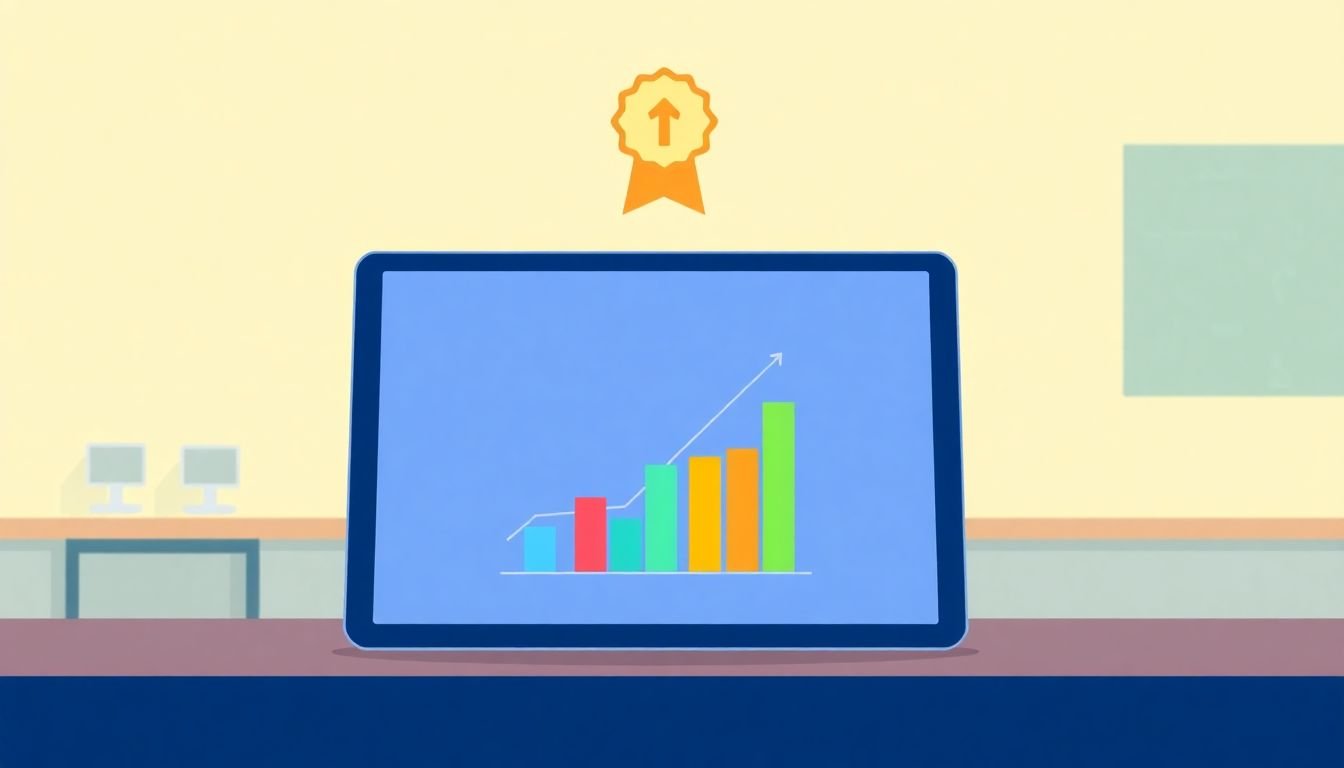
- Visualize progress in Sheets with charts that show trends over time (not just one snapshot). When students can see growth, motivation usually follows.
- Add gamification carefully: points for effort and completion, badges for micro-goals, and friendly challenges that encourage persistence—not just “top score wins.”
Track Student Progress with Embedded Forms
If you want something that feels “LMS-like” without actually using one, embedded forms are the easiest place to start. I like using them for short, frequent signals—not big assignments that take forever to complete.
Here’s a setup that’s worked well for me:
- Form 1: Topic Check-In (2–3 minutes) — questions like “Which part felt hardest?” and “How confident are you (1–5)?”
- Form 2: Assignment Submission Check — “Did you submit?” (Yes/No), plus an optional “What’s your score range?” (or “Need feedback?”).
- Form 3: Self-Assessment — students rate their understanding before and after a lesson (“Before: 1–5 / After: 1–5”).
With Google Forms (or the equivalent), you can embed the form on a page students already visit, or you can share it via email. Either way, the key is making it frictionless: one link, one form, done.
Now for the part that saves time: I turn on notifications so I don’t have to check responses manually. In Google Forms, that’s typically done through the “Responses” tab and notification settings. Once it’s on, every submission becomes a trigger.
Also, don’t ignore conditional logic. It’s not just “fancy”—it’s practical. If a student selects “I’m stuck,” you can route them to a different section of the form that asks what they tried, and what help they need. If they select “I understand,” you can ask them to attempt an extra challenge question or pick a “next topic.”
For conditional logic, the rule is simple: student response → next question or suggested resource. It makes your workflow feel responsive, even when you’re busy.
One more thing: micro-achievements work because they reduce the wait time. Instead of “final quiz next week,” you can do mini-checks after each lesson. Students see movement sooner. Teachers see issues sooner.
Limitation to be aware of: forms are only as good as the questions you ask. If your form is vague (“How was it?”), you’ll get vague answers. If it asks for specifics (“Which step confused you?”), you’ll get actionable data.
Use Google Sheets for Data Management
Once the forms start coming in, Google Sheets is where the magic turns into something you can actually use. I keep one master sheet per class (not per assignment), because it makes trend spotting way easier.
Here’s the schema I recommend (and I’m picky about this part):
- One row per student per check (or per week). This matters. If you overwrite data, you lose the story of improvement.
- Columns that stay consistent across forms: Student Name, Student ID (if you have one), Check Date, Topic, Confidence (1–5), Submitted (Y/N), Needs Help (Y/N), Notes.
Then I add a few “at-a-glance” features:
- Conditional formatting — for example, confidence ≤ 2 in red, 3 in yellow, 4–5 in green.
- Simple formulas — COUNTIF to see how many students need help, AVERAGE to track overall understanding.
- Pivot tables — to answer questions like “Which topic has the most stuck responses?”
Example formulas you might actually use:
- Average confidence for Topic A: =AVERAGEIF(TopicRange,"Topic A",ConfidenceRange)
- How many students need help: =COUNTIF(NeedsHelpRange,"Yes")
About “research” for progress monitoring: the general idea that regular feedback and monitoring improve outcomes is well-supported in education. For example, the Institute of Education Sciences (IES) practice guides and related reviews emphasize frequent formative assessment and feedback loops (see: IES/WCER Practice Guide on improving reading comprehension for students in grades 4–9 and the broader formative assessment guidance from IES practice guides). The important part for you isn’t the jargon—it’s the routine.
In my workflow, the “routine” looks like this: I review the sheet twice a week, and I pick one topic to reteach or one misconception to address. That’s it. If I don’t decide what to do with the data, the sheet becomes decoration.
Pro tip: use data validation for your grade fields and topic dropdowns. It prevents the “Math / math / MAT H” problem that wrecks charts later.
Monitor Activity with Google Analytics
Google Analytics is usually thought of as “website stuff,” but if your course content lives on web pages (even a simple site), GA4 can tell you what students are actually engaging with.
What I track depends on what I built, but common signals include:
- Time on page (are they actually reading?)
- Video engagement (did they watch past the first minute?)
- Clicks on key resources (worksheets, examples, practice pages)
Start simple. You don’t need a full analytics setup on day one. Add tracking for:
- Page views for each lesson page
- Events for “quiz opened,” “worksheet downloaded,” or “video played”
Then ask practical questions:
- Do students drop off after a specific lesson?
- Is one video getting started but not finished?
- Are students revisiting practice pages before assessments?
One thing I’ve noticed: when you can see where the engagement drops, you stop guessing. Maybe the explanation is too long. Maybe the example is missing. Maybe the instructions are unclear. Analytics won’t fix it for you, but it tells you where to look.
Limitation: analytics won’t tell you whether a student is learning. It tells you whether they’re interacting. Pair it with your forms/assessments for the full picture.
How to Use Online Assessment Platforms Effectively
Online assessment tools are great for tracking progress because they give fast results. But the trick is using them in a way that actually informs instruction.
First, choose a tool that’s easy for you and for students. I look for:
- Fast quiz creation
- Immediate feedback (at least “correct/incorrect” and ideally explanations)
- Item-level reporting (which questions students missed)
You don’t need to start with perfect assessments. Start with one quiz per week or one per lesson unit. Then improve.
Here’s what I design:
- Short, frequent checks instead of one giant test
- Question variety: multiple choice for quick scanning, short answer for reasoning, and a “real task” question when possible
- Feedback that points forward: if they miss a concept, the system should suggest the next resource
About the “learning gains” side: formative assessment and frequent feedback have strong evidence behind them. A classic reference is Black & Wiliam’s work on formative assessment (Black, P., & Wiliam, D. (1998). “Assessment and classroom learning.” Assessment in Education: Principles, Policy & Practice, 5(1), 7–74. https://doi.org/10.1080/0969595980050102). The takeaway is straightforward: feedback loops improve learning when they’re used to adjust teaching and support.
So when your assessment platform shows a pattern (like everyone missing the same step), don’t just record it—act on it. Reteach that step, add an example, or assign a targeted practice set.
One more practical tip: don’t only look at overall scores. Look at which items students missed. That’s where misconceptions hide.
Applying Formative Assessment Techniques in Your Class
Not everything has to be digital. In fact, some of the most useful progress data comes from quick checks during the lesson.
I like formative assessments because they’re fast and they reduce the “surprise” factor later. Students who are confused don’t get to disappear until the final quiz.
Try a few that you can do consistently:
- Exit tickets (2 questions max): “What was the main idea?” + “One thing you still don’t get.”
- Mini whiteboard responses (or paper): pose one problem and scan answers.
- Think-pair-share then ask one student to summarize the reasoning.
- Quick polls (if you have devices): “Which step is correct?”
Here’s the key: after the check, you do something with it. If you see a pattern, you adjust that day. If you don’t, you keep moving.
To make formative checks “trackable,” you don’t need to log everything. Pick a simple method:
- Write down only the misconception you heard most
- Record the number of students who missed the key concept (even a rough count helps)
- Use your Google Sheet to add a single column like “Formative Check: Topic A (Y/N)”
That way, your in-class observations connect to your longer-term data. The sheet stays useful, and you don’t drown in notes.
Using Data Visualization to Show Student Growth
Raw numbers are hard for most students to interpret. But charts? Charts make progress feel real.
In Google Sheets, I build simple visuals that answer one question: Is this student improving over time?
Examples of charts that work well:
- Line chart: quiz scores across weeks
- Bar chart: confidence ratings over time
- Stacked bar: performance by skill area (if you break assessments into categories)
If you want it to be instantly readable, color-code with intention:
- Green = improvement
- Yellow = flat (same score/confidence)
- Red = decline or repeated “stuck” signals
And yes—sharing visuals can boost motivation. Students like seeing growth when it’s not just “you got a grade.” In the real world, persistence often improves when learners can track effort and progress. If you want a solid starting point on motivation and goal feedback, check out research on self-regulated learning and feedback loops (for example, Zimmerman’s work on self-regulated learning: Zimmerman, B. J. (2002). “Becoming a self-regulated learner: An overview.” Theory Into Practice, 41(2), 64–70. https://doi.org/10.1207/s15430421tip4102_2).
Limitation: don’t use charts to shame students. If a student sees red and feels punished, you’ll get the opposite of progress. I treat the visuals like a map: “Here’s where we’re stuck—let’s fix it.”
Incorporating Gamification to Keep Learners Engaged
Gamification can work, but only if you use it for the right reasons. If it’s just “points for being fast,” you’ll end up rewarding the students who already know the material.
What I prefer is gamification that rewards consistency and effort. Think: “You practiced” and “You improved,” not just “You got it right once.”
Here’s a simple system you can run without an LMS:
- Points for lesson completion, quiz attempts, or helpful forum posts (if you have discussions)
- Badges for micro-goals like “Completed 3 check-ins” or “Improved by 1 level”
- Challenges that unlock next steps after mastery (so students don’t just guess)
If you want to create quizzes and practice that feed into this, you can use a tool like createaicourse.com to build structured assessments quickly.
Leaderboards can be motivating, but I keep them friendly. A “Top 5 this week” leaderboard is fine if you also include a “Biggest Improvement” badge so students who struggle still have something to aim for.
Also: balance competition with collaboration. Try team quests where students must solve together. It reduces the “I’m behind, so I’ll quit” effect.
Limitation: gamification isn’t a substitute for instruction. If the content is unclear, points won’t magically make students learn.
FAQs
Embedded forms collect quick, real-time signals—like confidence ratings, topic check-ins, and submission status—so you can spot gaps early. They also reduce manual data entry because responses automatically land in one place.
Google Sheets makes it easy to organize student updates in a consistent structure. You can sort, filter, run formulas, build charts, and share reports without needing a full LMS. Plus, it’s easy to collaborate with other educators.
Google Analytics helps you see engagement patterns—what pages students view, how long they stay, and which parts get clicked most. That gives you clues about where students are getting stuck or losing interest.
Online assessment platforms provide fast feedback and clear results, which makes it easier to track progress over time. Many also show which questions students missed, so you can target instruction instead of guessing.